
Purpose:
Use this article to create and publish a new multimedia blog post using the WordPress Default Editor.
Applies To:
• WordPress
• Multimedia Posts (Blogs)
• Default WordPress Editor
Before You Begin:
Have available:
• Approved blog document
• Blog title
• Featured image
• Blog content
• Meta description
• Focus keyword
• Categories and tags
• Author information
How to Create a Blog Post:
1. Create a new Multimedia Post.
2. Enter the blog title.
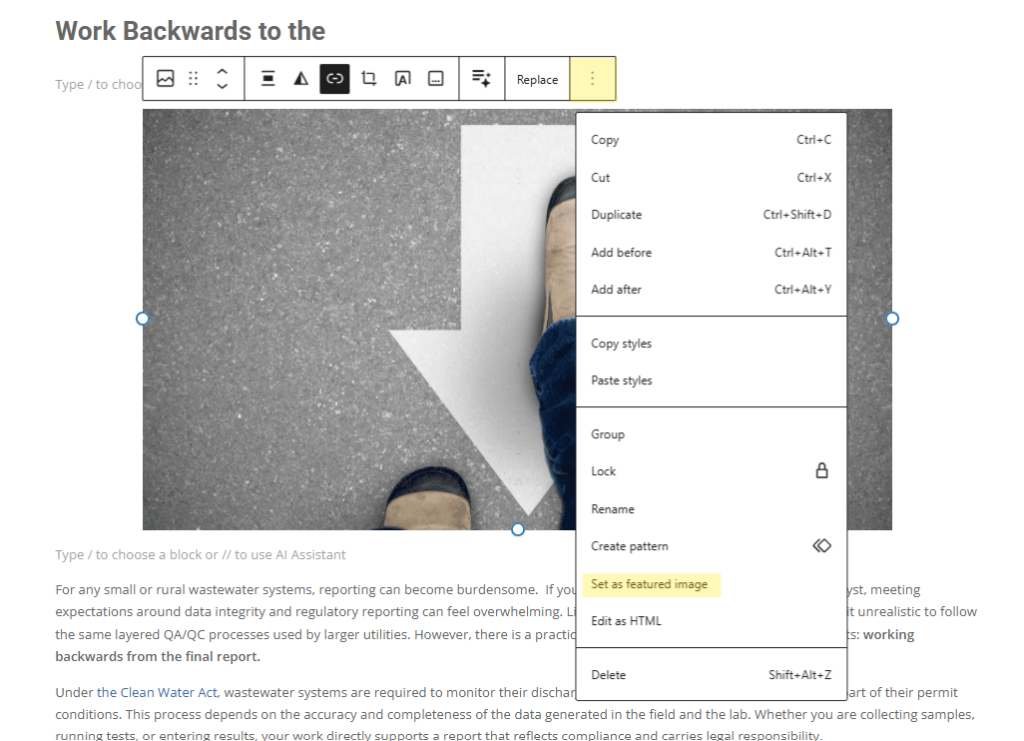
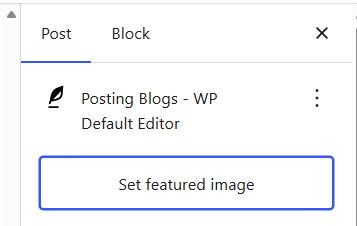
Step 2 – Add the Featured Image
• Insert the prima“ry image.
• Set it as the Featured Image using either the image menu (Set as Featured Image) or the Post sidebar.
Step 3 – Add Blog Content
• Press Enter to create a new block.
• Paste the blog content.
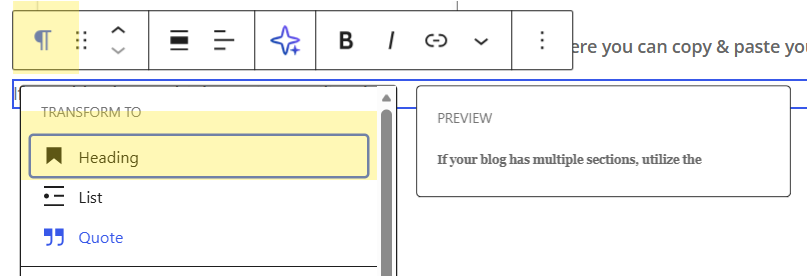
• Convert paragraphs to Heading blocks where appropriate.
• Use List blocks for bullets or numbered lists.
Step 4 – Add Links
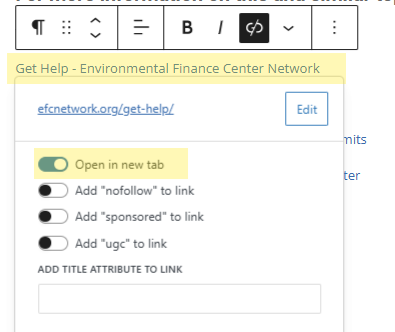
• Paste hyperlinks.
• Enable ‘Open in new tab’.
Configure Blog Settings:
Author:
Enter the blog author.
Categories:
Assign all required categories, including state or program if applicable.
Tags:
Add relevant keywords and common misspellings.
AIOSEO Settings:
• Copy the Meta Description from the blog document.
• Enter a Focus Keyword that also appears in the title whenever possible.
Preview and Publish:
1. Save your work.
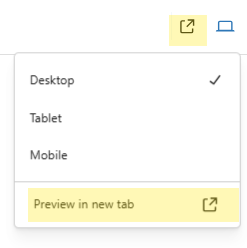
2. Preview in a new tab.
3. Verify formatting, images, headings, links, and metadata.
4. Publish the post.

Common Issues:
• Featured image missing: Verify it is set as the Featured Image.
• Headings appear as paragraphs: Change the block type to Heading.
• Links open in same tab: Enable ‘Open in new tab’.
• Low SEO score: Verify the focus keyword and meta description.